How to Change Macro Icons
Macro icons can be changed from the Manage Macros dialog so they appear with the icon you prefer on the ribbon and menus.
Open Manage Macros
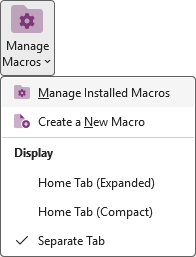
Open OneNote and click the Manage Macros button on the ribbon, then choose Manage Installed Macros from the menu.
Change an icon
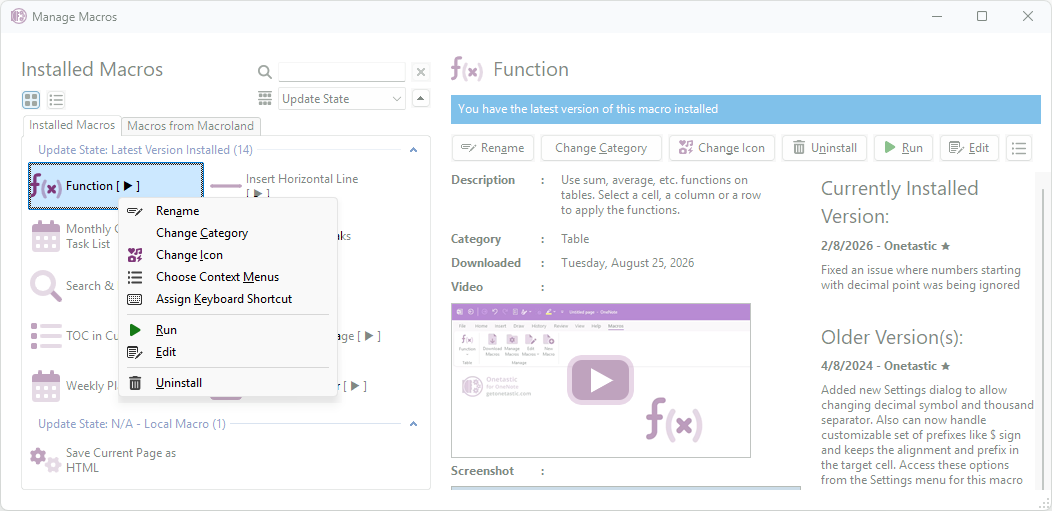
- Right-click a macro and select Change Icon, or use the icon button in the dialog toolbar.
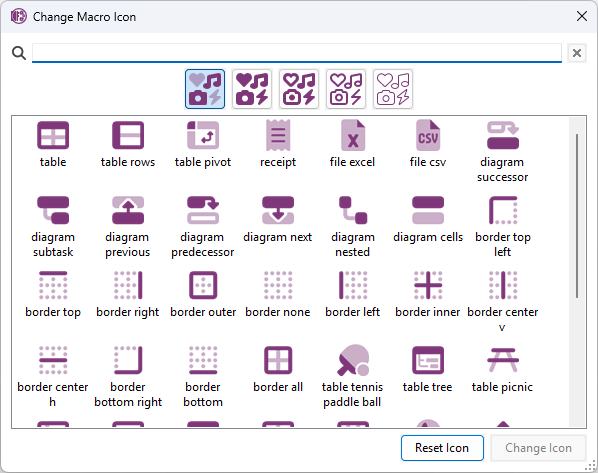
- Pick an icon from the available set. Some dialogs offer a small built-in palette; others allow choosing from a larger icon gallery.
- Confirm your choice. The new icon is applied to the macro immediately and will appear on the ribbon and in context menus where the macro is shown.
Notes
- Icons help visually identify macros quickly, choose clear, distinct icons for frequently used macros.
- Icon changes are local to the installation. If you want the same icon on another computer, export/import your settings or reassign the icon there.
If your question isn't answered, send an e-mail to
support@getonetastic.com.