How to Change Macro Categories
You can assign or change the category of a macro from the Manage Macros dialog. Categories help organize macros in Macroland and in your local lists.
Open Manage Macros
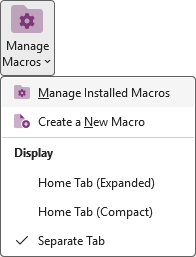
Open OneNote and click the Manage Macros button on the ribbon, then choose Manage Installed Macros from the menu.
Change a macro's category
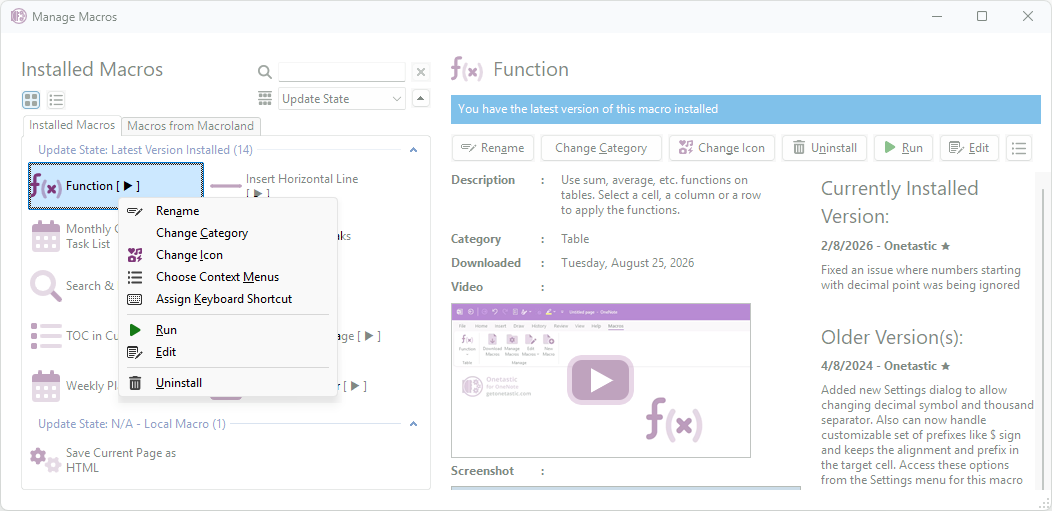
- Right-click the macro and choose Change Category, or select the macro and use the toolbar option.
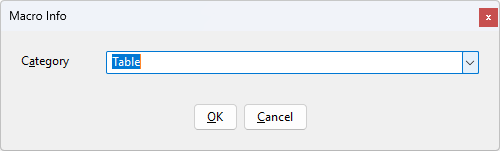
- Choose an existing category from the list, or create a new category if the dialog allows.
- Confirm the change. The macro will now be listed under the chosen category and that category will be visible in Macroland and in lists where categories are shown.
Notes
- Categories make it easier to find and filter macros in Macroland and in the Manage Macros dialog.
- If you change a macro's category locally, users on other machines will not see the change until they import a settings file that includes the updated category.
If your question isn't answered, send an e-mail to
support@getonetastic.com.