Import & Export Macros
Onetastic's Import / Export feature packages macros and other settings into a single .xml file. Use it to transfer macros between computers, share selected items with others, or keep a reliable backup.
What you can export
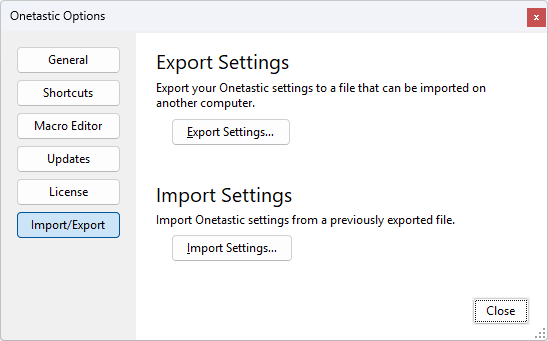
The export dialog lists every category that has content in your installation. Common categories include:
- Macros
- Custom Styles
- Keyboard Shortcuts
- Favorites
- Display Settings (ribbon/button visibility)
- Macro Editor Settings (font, theme, editor preferences)
Exporting macros
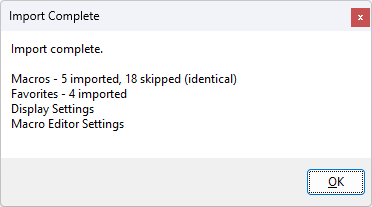
- Open OneNote and go to Home > Tools and Settings > Onetastic Options.
- Switch to the Import / Export tab and click Export Settings.
- Check the Macros category (and any other categories you want), then click Next.
- Choose a filename and location for the .xml file and save it. Keep a copy in cloud storage and one on an external drive if you want redundancy.
Importing macros
- On the destination computer, install OneNote and Onetastic.
- Open Onetastic Options > Import / Export and click Import Settings.
- Select the exported .xml file. Onetastic will list the sections contained in the file and the count for each one.
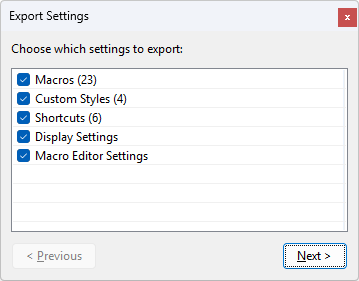
- If items in the file already exist on your computer, Onetastic shows a conflict page for that category. Each conflicting item appears with a checkbox; leave checked to overwrite the local item, uncheck to keep your current version.
- Use the Previous and Next buttons to review and adjust selections across multiple categories. When ready, click Next to apply the import.
Import summary and results
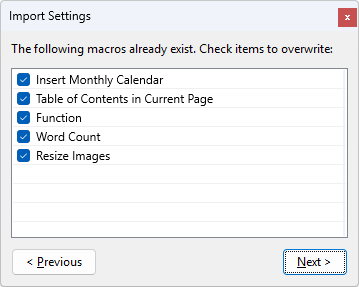
After the import completes, Onetastic shows a summary that indicates, per category:
- How many items were imported (new items added)
- How many were skipped because they were identical to existing items
- How many were skipped because you unchecked them on the conflict page
Keyboard shortcuts note
When importing keyboard shortcuts, Onetastic lists each shortcut with its key combination and description (for example Ctrl+Alt+H - Insert Horizontal Line) so you can easily spot duplicates or conflicts and choose which to keep.
Practical use cases
- New computer setup: Export all settings from your old machine and import them on the new one to quickly restore macros, shortcuts, styles, and favorites.
- Team sharing: Export a subset (for example, Macros + Shortcuts) and share the .xml with colleagues so everyone can use the same tools.
- Backups: Keep dated copies of your exports so you can restore a previous configuration after a clean install.
- Selective sharing: Export only the categories you want to share (e.g., Macros and Shortcuts) without exposing personal Favorites or display settings.
Notes
- Import / Export requires an Onetastic Pro license; if the feature is unavailable the options dialog shows an upgrade link.
- You don't have to export everything at once; each category is a separate checkbox so you can pick exactly what you want to include.
Using Import / Export is safer and more flexible than manually copying application files. Keep your exported .xml files in a secure location for transfers or restores.
If your question isn't answered, send an e-mail to
support@getonetastic.com.