Backups: Exporting and Restoring Macros & Styles
Exporting your Onetastic settings produces a single .xml file that can act as a full backup. This page recommends a simple backup workflow and explains restoring from an export file.
Recommended backup workflow
- Open Onetastic Options > Import / Export > Export Settings.
- Select the categories you want backed up (Macros, Custom Styles, Shortcuts, Favorites, etc.).
- Save the .xml file with a descriptive name including the date (for example: onetastic-backup-2026-09-04.xml).
- Store copies in two locations: a cloud storage folder (e.g., OneDrive) and an external drive or other off-site location.
- Keep a regular cadence (weekly or before major changes) and keep at least one copy per month for long-term recovery.
Restoring from a backup
- Install OneNote and Onetastic on the computer you are restoring to.
- Open Onetastic Options > Import / Export > Import Settings.
- Select your backup .xml file. Review the list of categories and item counts.
- Use the conflict pages to choose whether to overwrite existing items. By default Onetastic checks conflicts for overwriting; uncheck any items you want to keep unchanged.
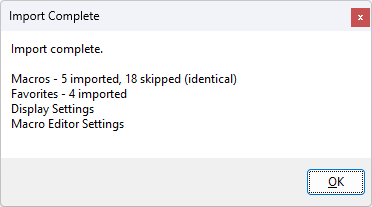
- Complete the import and review the summary page to confirm what was restored.
Notes and tips
- Export files are portable and can be used to share settings with colleagues or to restore after a clean OS install.
- If you need to automate backups, saving the .xml to a synced folder (OneDrive/Dropbox) effectively keeps a continuous backup copy.
- Import / Export requires an Onetastic Pro license; if the feature is not available the options dialog will show an upgrade link.
Keep your how-to and backups pages self-contained: the Import / Export UI shows the available categories, conflict pages, and an import summary so you can perform transfers or restores without referring to external guides.
If your question isn't answered, send an e-mail to
support@getonetastic.com.