Shortcut Conflict Detection
When you assign a shortcut, Onetastic immediately checks for conflicts with:
- Other Onetastic shortcuts: Prevents accidentally assigning the same shortcut to two different
actions
- OneNote's built-in shortcuts: The system knows all of OneNote's native keyboard shortcuts
If there's a conflict, you'll see it right in the interface:
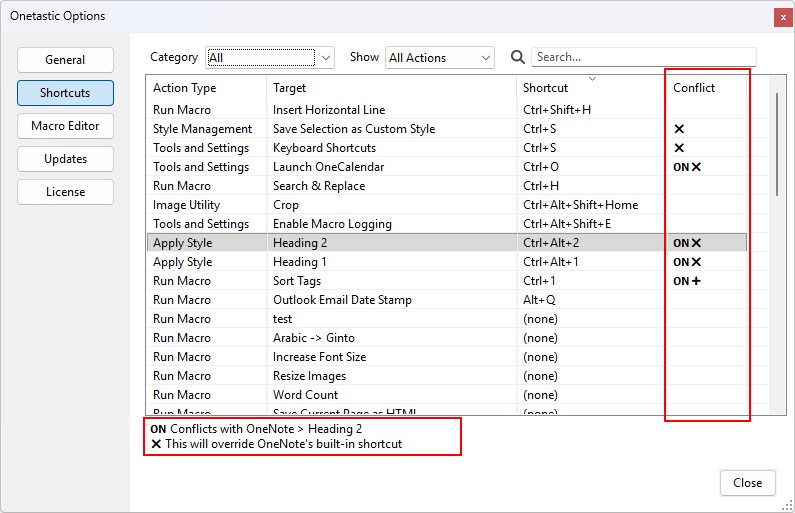
The Conflict column uses visual indicators:
 : Conflicts with a OneNote built-in shortcut and
will override it
: Conflicts with a OneNote built-in shortcut and
will override it : Conflicts with a OneNote shortcut but will
execute after OneNote's action
: Conflicts with a OneNote shortcut but will
execute after OneNote's action : Conflicts with another Onetastic shortcut
Override or Augment: Your Choice
Here's where things get really interesting. When your shortcut conflicts with a OneNote built-in shortcut, Onetastic
gives you two options:
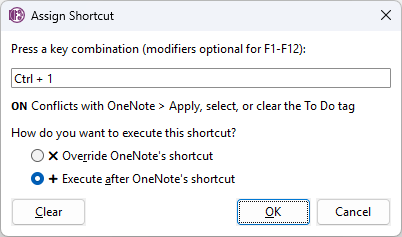
- Override OneNote's shortcut: Your Onetastic action completely replaces OneNote's behavior for
this key combination. For example, if you prefer your custom numbering macro over OneNote's Ctrl+1 tag shortcut,
you can override it.
- Execute after OneNote's shortcut: Both actions happen in sequence: OneNote's action first, then
your Onetastic action. This is perfect when you want to build on top of OneNote's functionality. For instance,
you could create a macro that runs after OneNote applies a tag, adding your own custom processing.
This level of control means you're never locked into OneNote's defaults, but you also never lose functionality if you
don't want to.
Keyboard Shortcuts Topics
If your question isn't answered, send an e-mail to
support@getonetastic.com.