Setting Up a Shortcut
Once you open the Shortcuts dialog, assigning a shortcut is incredibly simple:
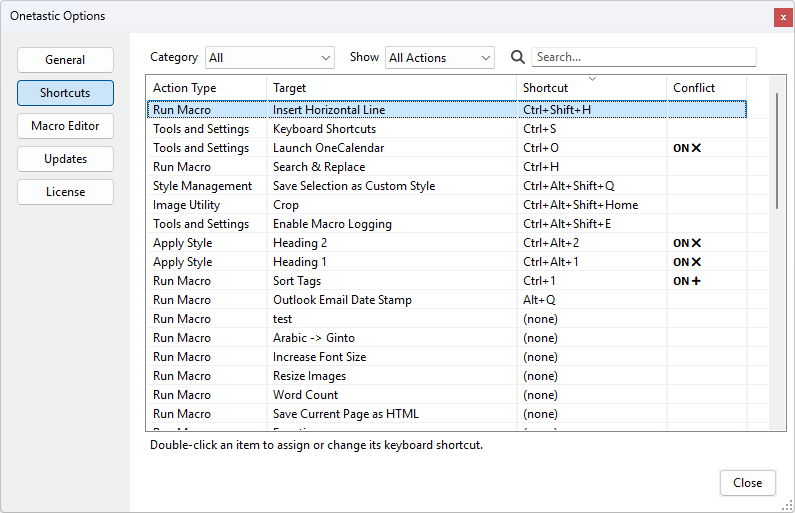
- Find the action you want in the list (use the search box or category filters to narrow it down)
- Double-click the action, or select it and press Enter
- In the Key Capture dialog, press the key combination you want to use
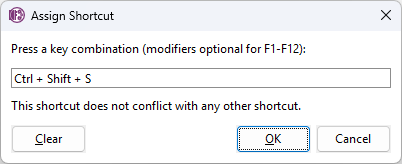
The Key Capture dialog shows you exactly what you're entering and instantly alerts you if there's any conflict with
existing shortcuts. You can use:
- Modifier combinations: Ctrl, Alt, Shift, or any combination (e.g., Ctrl + Alt + S)
- Function keys: F1 through F12, with or without modifiers
- Letter, number, and symbol keys: With at least one modifier key
For example, let's say you frequently use a "Search & Replace" macro. You could assign it Ctrl + H,
the same shortcut that many text editors use for find and replace.
Understanding Shortcut Scope
Here's an important detail: Onetastic shortcuts are local to OneNote. They only work when OneNote has
focus and won't interfere with other applications.
If you assign Ctrl+H to your Search & Replace macro, it will work perfectly in OneNote, but when you switch to
Notepad or Word, their Ctrl+H shortcuts will work just as they always have. You don't need to worry about Onetastic
shortcuts taking over your entire system. This gives you the freedom to use familiar key combinations without any
conflicts outside of OneNote.
Keyboard Shortcuts Topics
If your question isn't answered, send an e-mail to
support@getonetastic.com.